RetouchPi ID Photo: Six Named Sizes Exported at 300 dpi
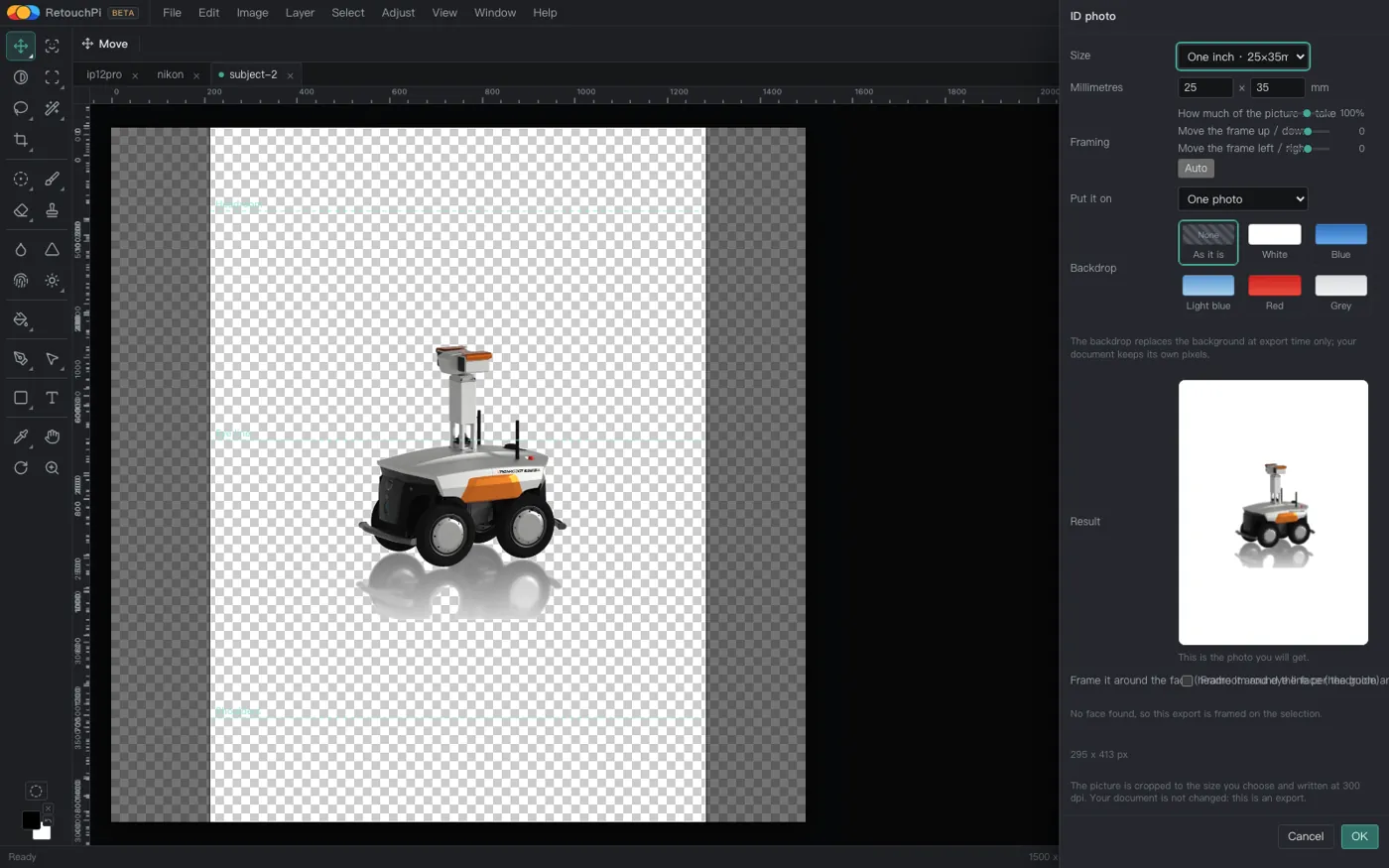
The ID photo lives at File ▸ ID photo. It is not a filter; it is a specification: pick a size, pick a sheet, drag the frame on the photo itself, then export a finished file at 300 dpi - the document is not touched, because this is an export. Measured: "one inch" comes out at 295 x 413 pixels.
Updated 2026-10-09 · ~ 1747 words
Hand it the portrait
Pick one and you land in the editor. The ID photo is an export command, not an open command: once inside, use File ▸ ID photo and the panel docks itself to the right of the canvas.
Four steps to the file
- Open the portrait: the well at the top of this page, or File ▸ Open (Ctrl+O) inside the editor.
- Use File ▸ ID photo. The panel docks to the right edge of the canvas and is deliberately non-modal, so the pointer still works on the photo - the frame has to be draggable on the picture itself.
- Pick a size (six named ones, or type millimetres), pick the print (a single photo, or a 5-inch or 6-inch sheet), and pick a backdrop swatch if you want one changed. Drag the frame on the photo and drag its corners to scale; the three guides are headroom, eye line and shoulders.
- Export. The bottom of the panel states the pixel size you are about to get (measured: "295 x 413 px" for one inch) and the file name carries the spec (
…_25x35mm.png). The document itself is not modified; this is an export.
Six named sizes, and what they are in pixels
| Name in the panel | Millimetres | Pixels out at 300 dpi |
|---|---|---|
| One inch | 25 x 35 | 295 x 413 |
| Two inch | 35 x 49 | 413 x 579 |
| Small one inch | 22 x 32 | 260 x 378 |
| Small two inch | 35 x 45 | 413 x 531 |
| Passport | 33 x 48 | 390 x 567 |
| Two inch square | 51 x 51 | 600 x 600 |
| Other size… (typed in) | 5 – 300, whole numbers | mm ÷ 25.4 × 300, rounded |
Five of the named sizes and any size you type share one piece of arithmetic: millimetres ÷ 25.4 × 300, rounded to whole pixels. The square row is the exception - a fixed 600 x 600, a round square in pixels rather than the 602 that 51 mm computes to.
Why these six: because these are the six people ask for by name. Anything else goes through "Other size…", where the two numbers you type become the specification. Typing 0 mm is refused rather than clamped to 5 mm - a zero-millimetre photo is a mistake, not a smaller photograph.
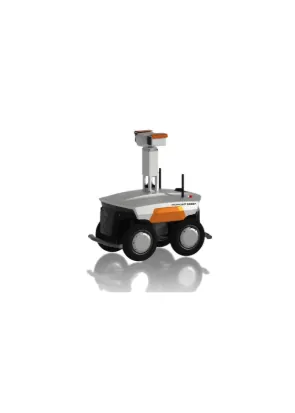
Measured: one inch comes out at 295 x 413
One full run on 2026-10-09: open a picture, File ▸ ID photo, size "One inch", print "One photo", export. The file that landed was subject-2_25x35mm.png, measuring 295 x 413 pixels - digit for digit the same as 25 x 35 mm at 300 dpi.
subject-2_25x35mm.png.Framing: three guides and a frame you drag
All six sizes share one composition: headroom at 12% of the frame height, the eye line at 45%, the shoulders at 85%. The three guides are drawn inside the frame, so when you drag it you are dragging against the specification rather than by feel.
- The frame drags on the photo and scales from its corners: the panel is docked and non-modal, so the pointer is never swallowed by a dialog.
- If you would rather not drag, there are sliders: how much of the picture to take, and moving the frame up/down and left/right.
- "Auto" hands the framing back to what the face detector computed, so a slip is always reversible.
- The guides are a borrowed overlay: open the panel, close it, and no extra lines are left on your canvas.
When it cannot find a face, it says so
Framing on a face needs a detector model, and it is loaded on demand (about 233 KB), so the first press of "Auto" shows "Finding a face…". When it finds one it reports: "Face found: the head sits at 12% and the eyes at 45%."
When it cannot, it says it cannot: "No face found, so this export is framed on the selection." The frame then follows your selection and the sliders rather than pretending it aligned a face that is not there. The panel capture above is exactly that state - it is not hidden on this page, because readers will meet it sooner or later, and a page that leaves them puzzled is worse than one they never find.
Backdrop: six swatches, replaced only on export
The backdrop row offers six choices: as it is, white, blue, light blue, red, grey. The panel states the rule itself: "the background is replaced on export only; the pixels in the document do not move."
- Replacing a backdrop also needs a person: when one is recognised it says so ("The subject is recognised: the background is replaced on export"), and when none is it says that instead ("No person recognised, so this export keeps its own background").
- A failed replacement is not silent either: "The background could not be replaced, so this export keeps its own."
- Because the change happens in the export and not in the document, picking the wrong swatch costs nothing - pick again; the picture was never altered.
Print: one photo, or a sheet
The print row decides whether the export is one photo or a sheet: a single one, or a layout on paper. Both sheets are whole pixels at 300 dpi: the 5-inch is 1500 x 1050 (5 x 3.5 in), the 6-inch 1800 x 1200 (6 x 4 in).
- When it fits, it counts: "This sheet fits N of them", and the result preview draws that sheet.
- When it does not, it does not squeeze: "This sheet cannot fit the photo, so pick another sheet."
- The preview is honest about one more thing: if a sheet only fits by scaling up, it says the result is upscaled.
What this page does not claim
- It does not modify the document. An export is an export: the size, the sheet and the backdrop all happen at the moment the file is written, and what is on the canvas is still what you opened.
- It does not guarantee compliance with any one country's rules. What it gives is the size and the composition - millimetres, 300 dpi, headroom 12% / eyes 45% / shoulders 85% - not a ruling on a particular passport regulation. Check the requirements the accepting authority publishes before you submit.
- This page covers layout and export only. Skin and face retouching belongs to a different set of commands, and nothing on this page makes a promise on their behalf.
- Exports are sRGB at 8 bits per channel. A print shop and the web both take that; a formal four-colour print job is not what it is for.
Questions people ask
Which size do I pick for a passport photo?
Whichever one the accepting authority asks for. "Passport" in the panel is 33 x 48 mm (390 x 567 px); the 35 x 45 mm that many international documents ask for is "Small two inch" (413 x 531); the US visa square, 51 x 51 mm, exports as a fixed 600 x 600 px. If yours is not in the table, choose "Other size…" and type the millimetres.
My size is not in the table. Can I type it in?
Yes. "Other size…" takes millimetres between 5 and 300, and the pixels are mm ÷ 25.4 × 300 rounded. Zero, or anything out of range, is refused - the panel says "Size must be between 5 and 300 mm" instead of quietly clamping to the nearest legal value.
What dpi is the export?
300. The pixel counts are the millimetres at 300 dpi: one inch at 25 x 35 mm gives 295 x 413 px, and that is exactly what the measured file came out as.
Can it lay out a whole sheet at once?
Yes. Choose a 5-inch sheet (1500 x 1050 px) or a 6-inch one (1800 x 1200) in the print row; the panel works out how many fit and the preview draws that sheet. If they do not fit it says so: "This sheet cannot fit the photo, so pick another sheet."
If I change the backdrop, is my original picture altered?
No. The panel states the rule: the background is replaced on export only, and the pixels in the document do not move. Pick the wrong swatch and pick again - the canvas was never touched.
It says "no face found". Is it broken?
No; it is telling you what it did. The detector model loads on demand (about 233 KB), and when no face is found the framing follows your selection and the sliders, with the panel stating "No face found, so this export is framed on the selection". Dragging the frame yourself still yields a file that meets the specification - the spec is the size and the guides, not the face.
Does making an ID photo send the picture to a server?
Ordinary retouching - decoding, editing, exporting, and an ID photo layout is an export - stays on your machine. AI generation and edits are the only step that reaches a server, priced in credits and quoted before you commit. Everything on this page belongs to the first group and costs no credits.
Is there a watermark, and do I need an account?
Neither. Exports carry no watermark, editor features need no account and no subscription, and only AI generation and edits are metered in credits. The editor canvas has no ad slots; ads elsewhere on the site can be removed with a one-time $9.99.
Read next
- Open camera RAWSeven real camera files, measured one by one
- Remove background119 ms, and the result is a layer mask
- Edit PSD onlineOpens layered, edit one layer, saves back layered
- JPEG to PDFOne pixel per point, read back byte by byte
- AI pricingOne credit is one US cent, tier by tier
- CapabilitiesWhat it opens, and what it exports
- Open CMYK filesNine samples opened, 254-261 ms each
- CMYK vs sRGBOne file, two colour spaces, a measurable gap
- Where the ads come fromZero ad slots on the canvas, screen-share maths
- Ad-free editingAd-free is a one-time purchase, not a subscription
- AI editing and layersResults land back on the source layer's rectangle, ±3 px
- Where your file goesEight actions, request lists, zero picture bytes out
Open the panel and read the spec before exporting
No account, no credits. Once inside, use File ▸ ID photo; the bottom of the panel keeps showing the pixel size of this export - check it against the spec you need, then export.
As an Amazon Associate, we earn from qualifying purchases.